Tracking Recent Hires
FINRA Gateway Reports makes it easy to report on recent hires by your firm.
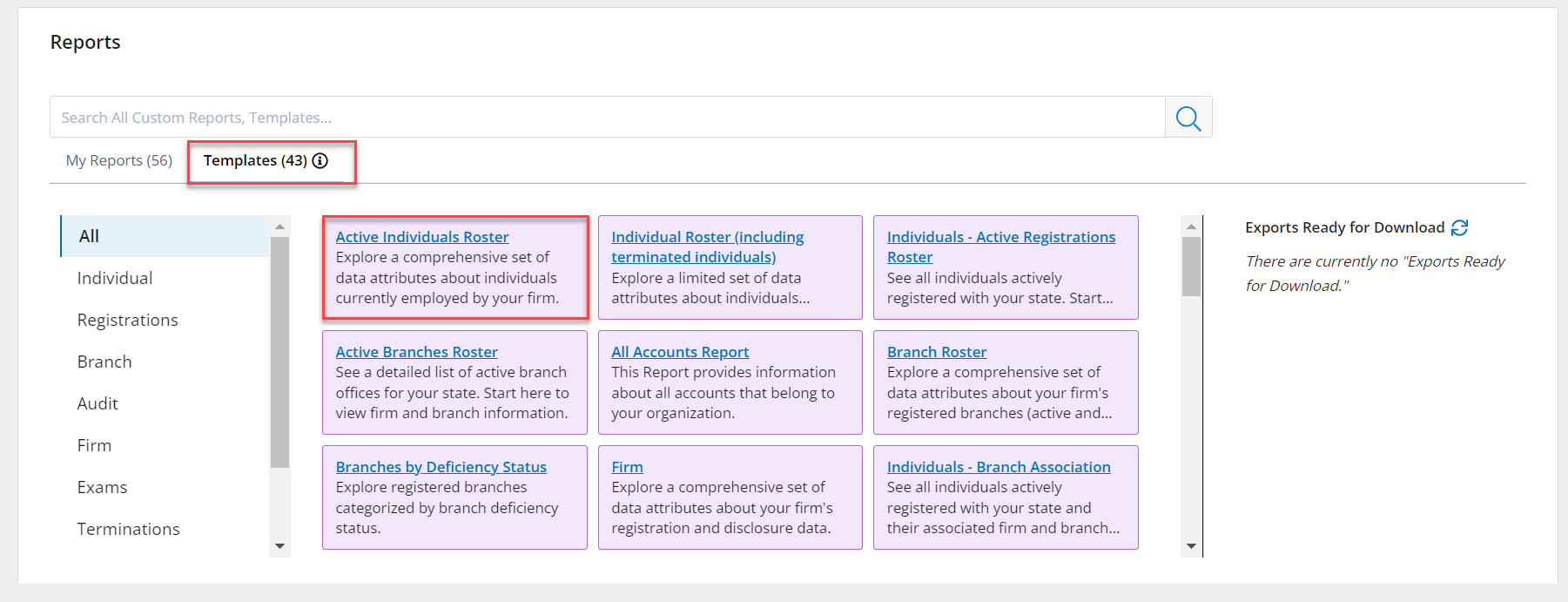
Log in to FINRA Gateway and navigate to Reports using the Report icon in the left margin. Choose the Templates link and click on the Active Individuals Roster to open.
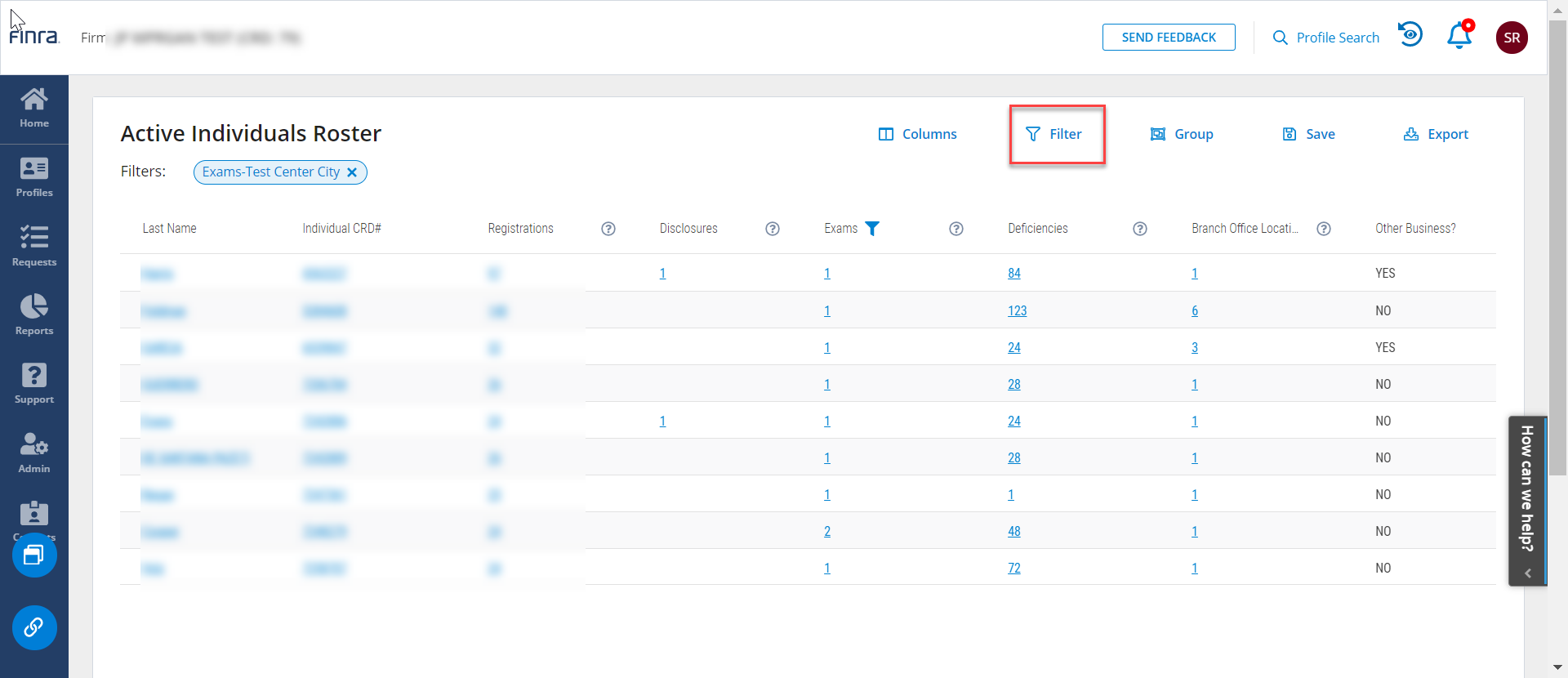
Once you have opened the Active Individuals Roster, click on the Filters tool in the top right of the page.
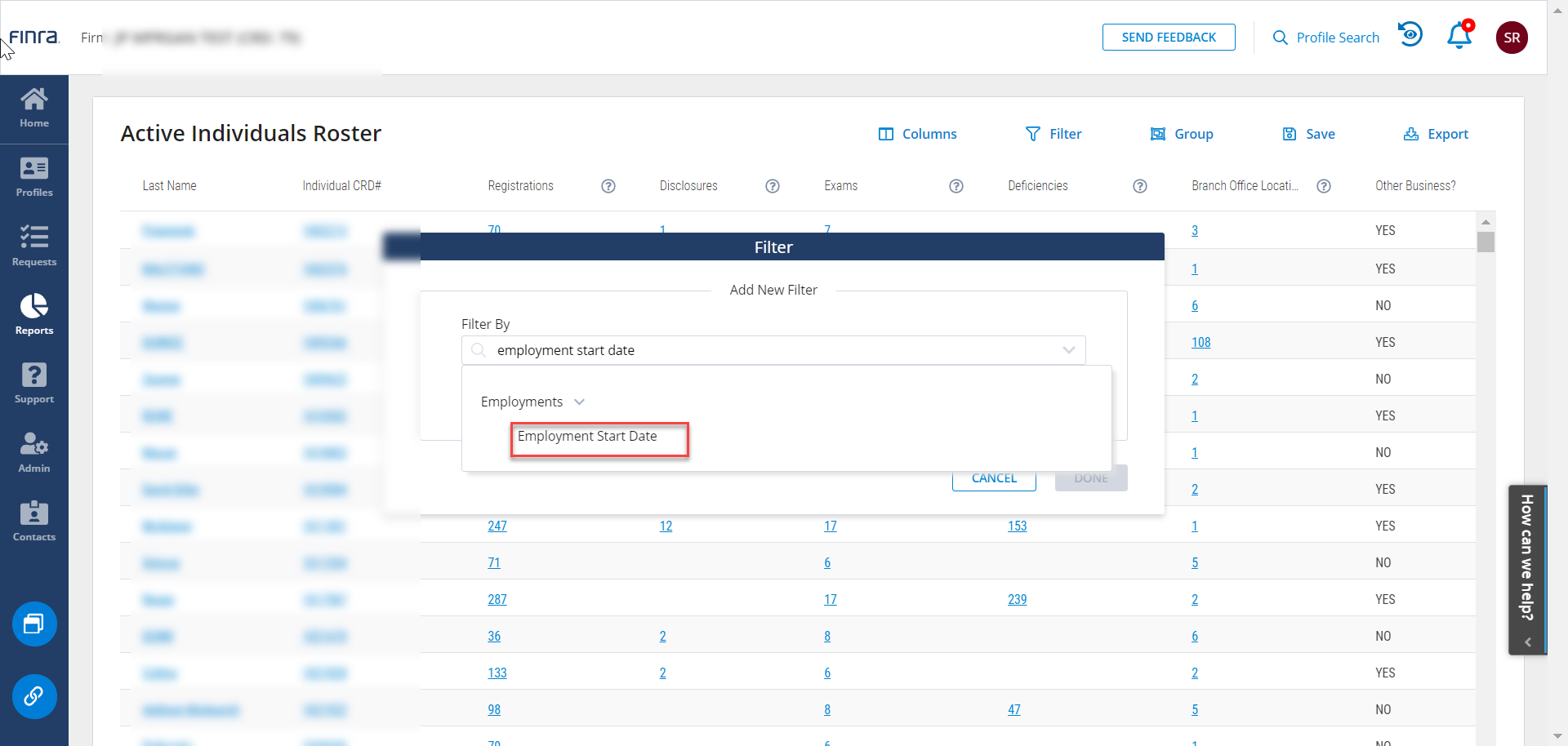
Within the Filters tool, search on Employment Start Date. Select the Employment Start Date filter from the list that appears when you search.
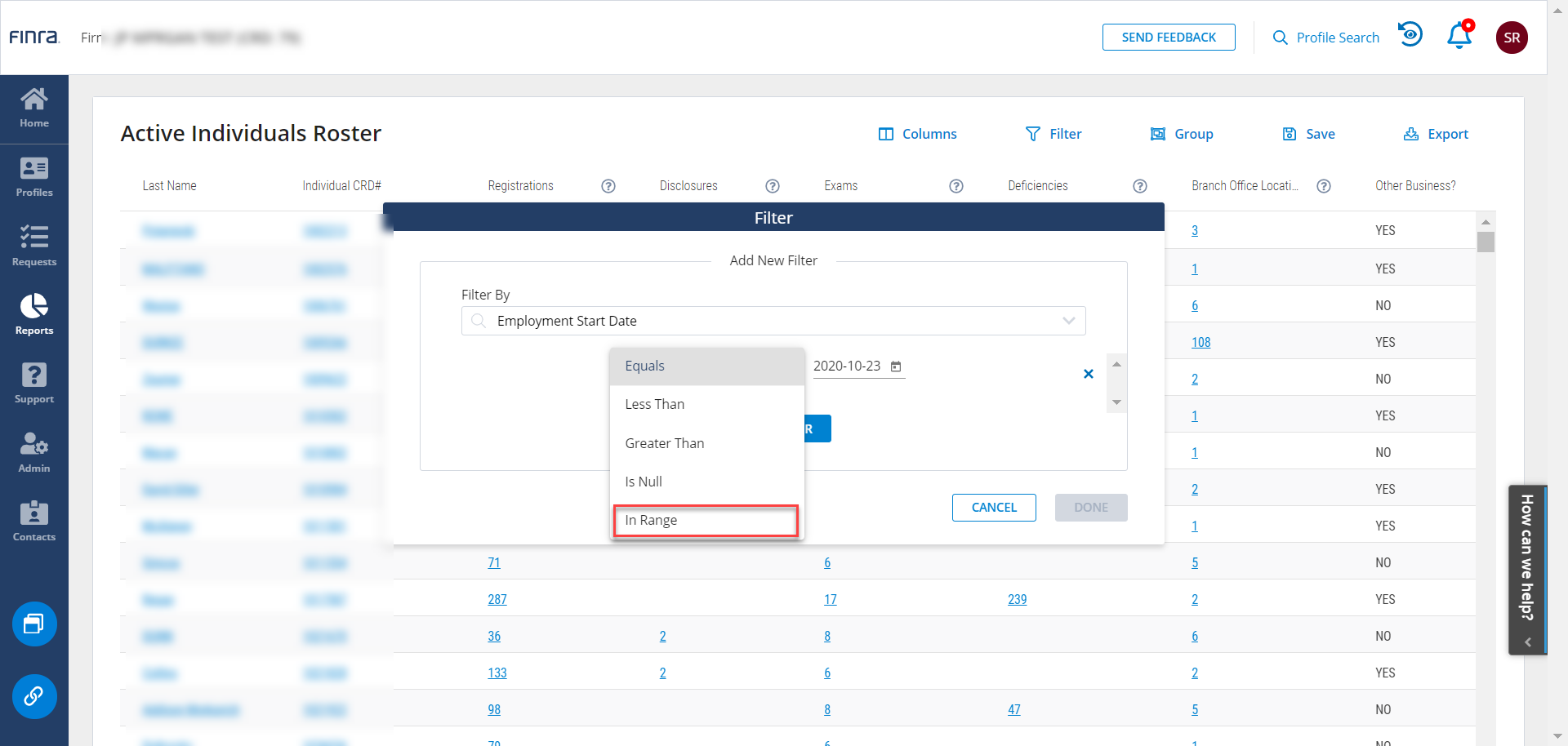
The filter settings will be set to "Equals" by default. Select the "In Range" option from the drop-down menu.
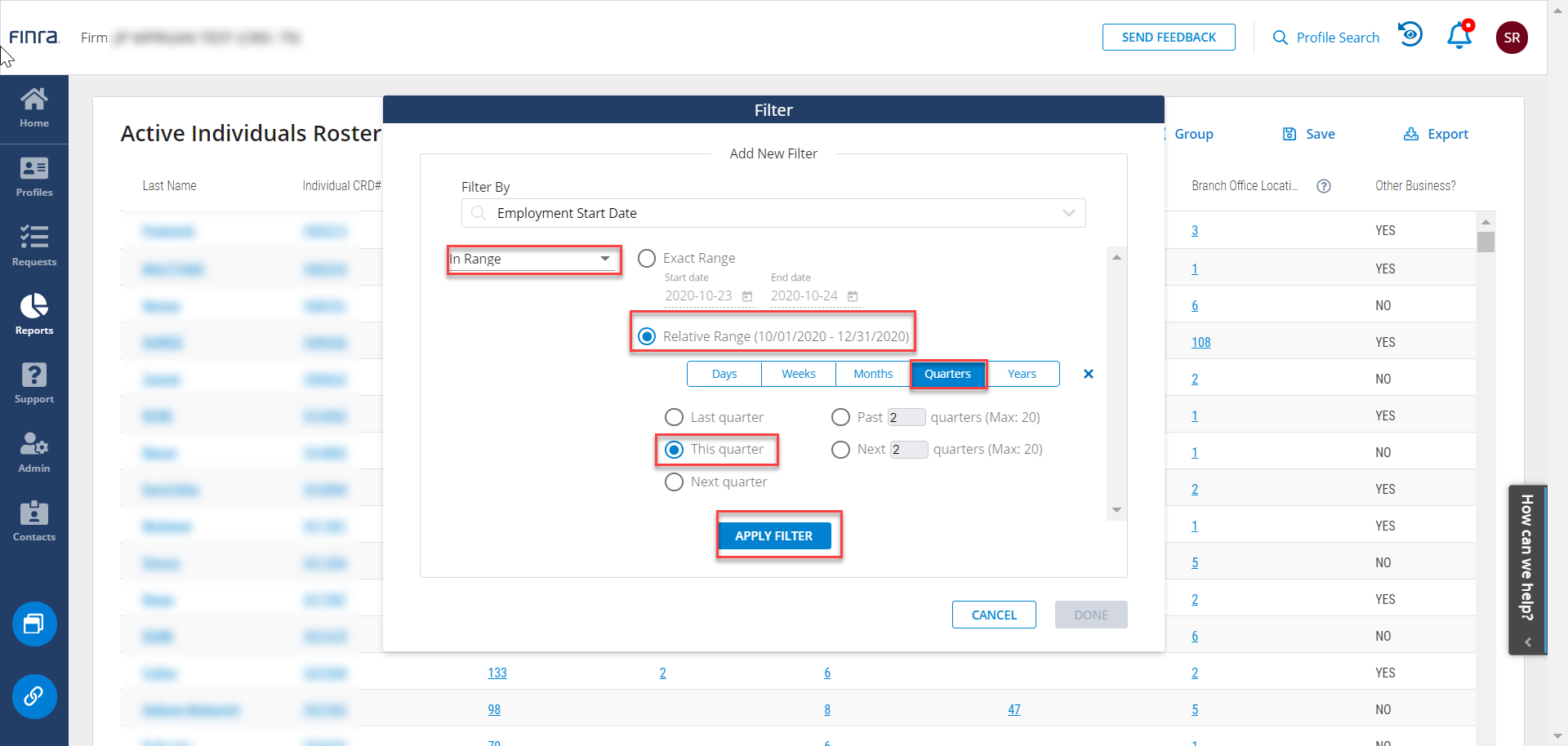
From the options that appear, select the "Relative Range" option. This will allow you to set a time period that is anchored to the date you run the report so the date range will remain relevant in the future.
Choose the "Quarters" option and select the radio button next to "This Quarter." Click Apply Filter.
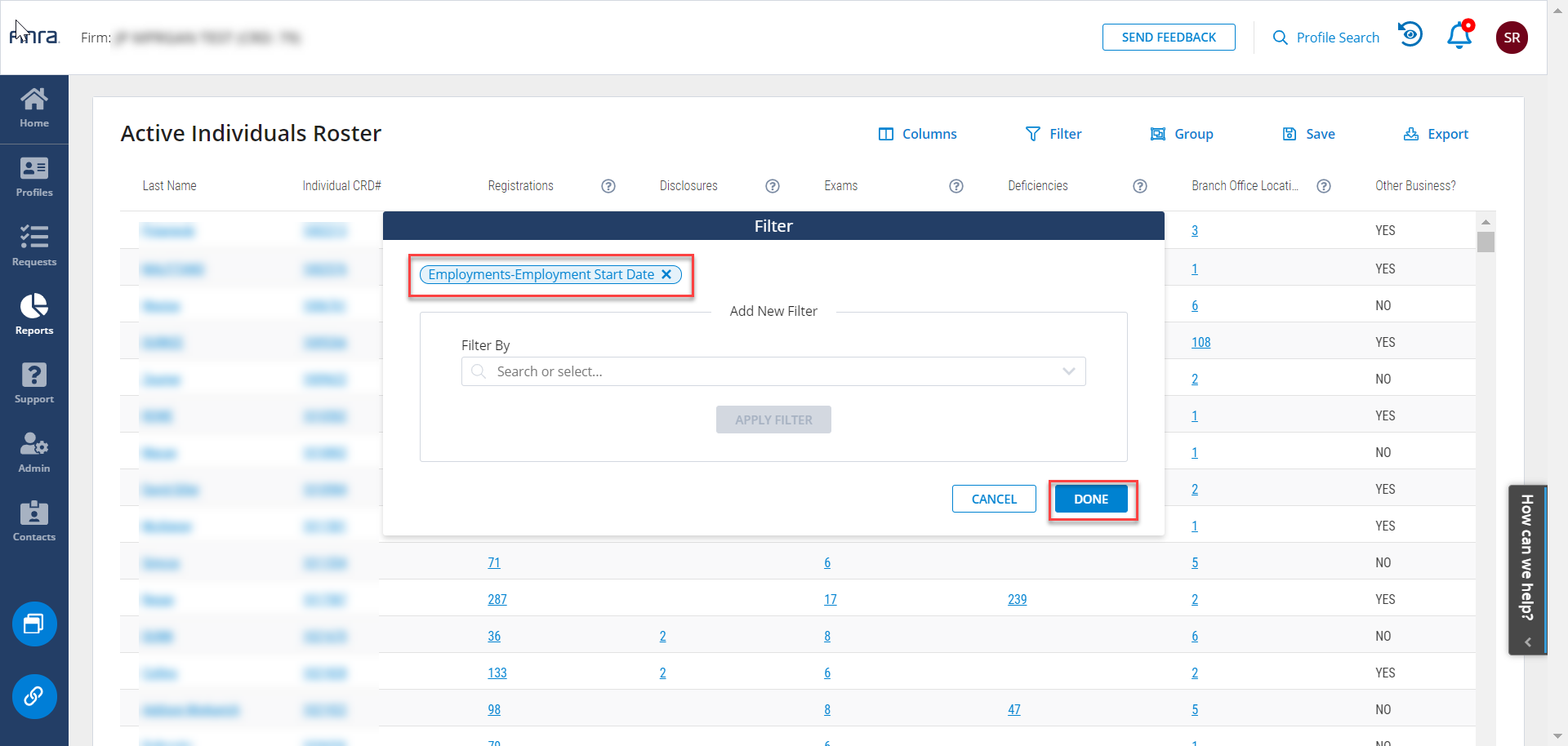
When you have applied the filter, you will see the Filter tag appear. Click Done.
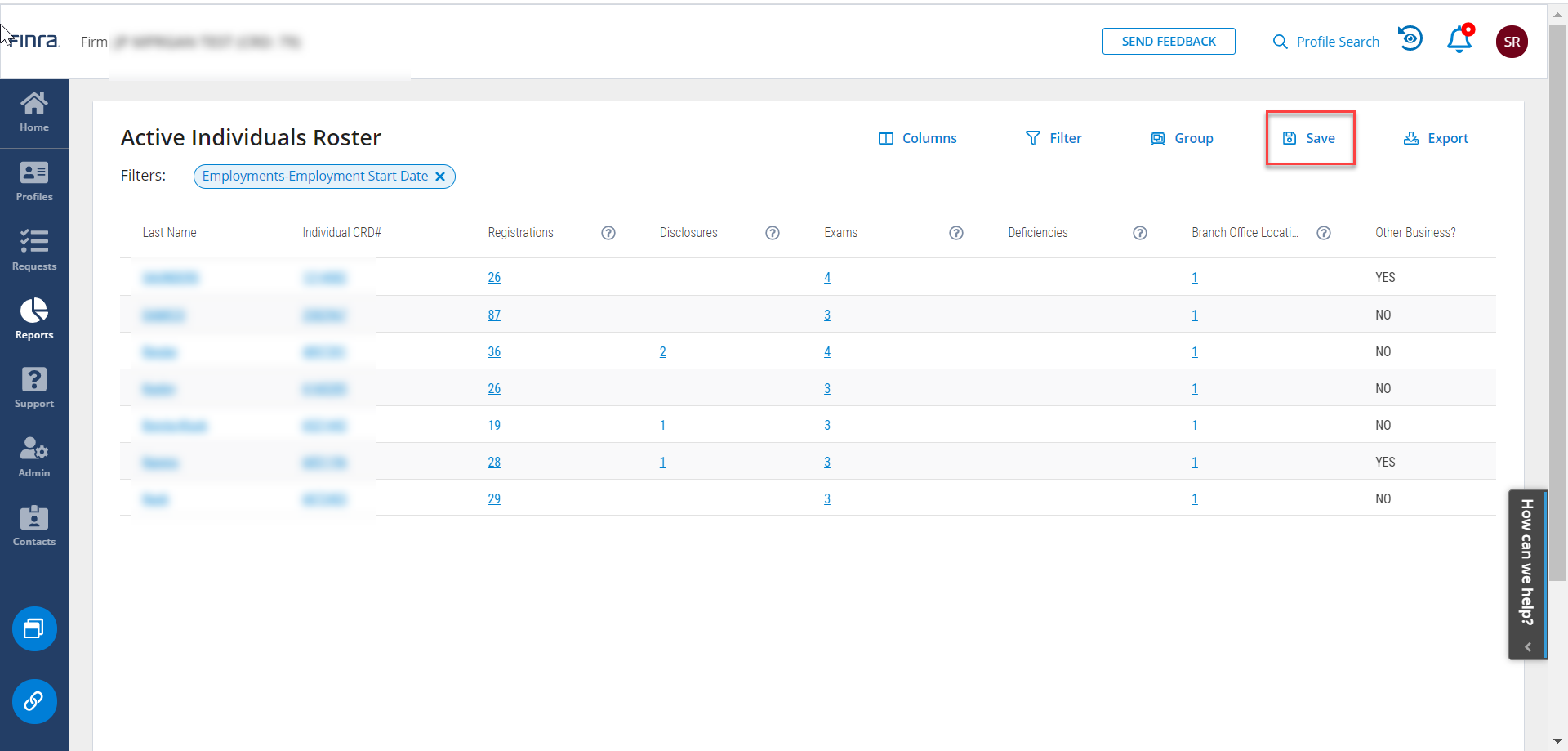
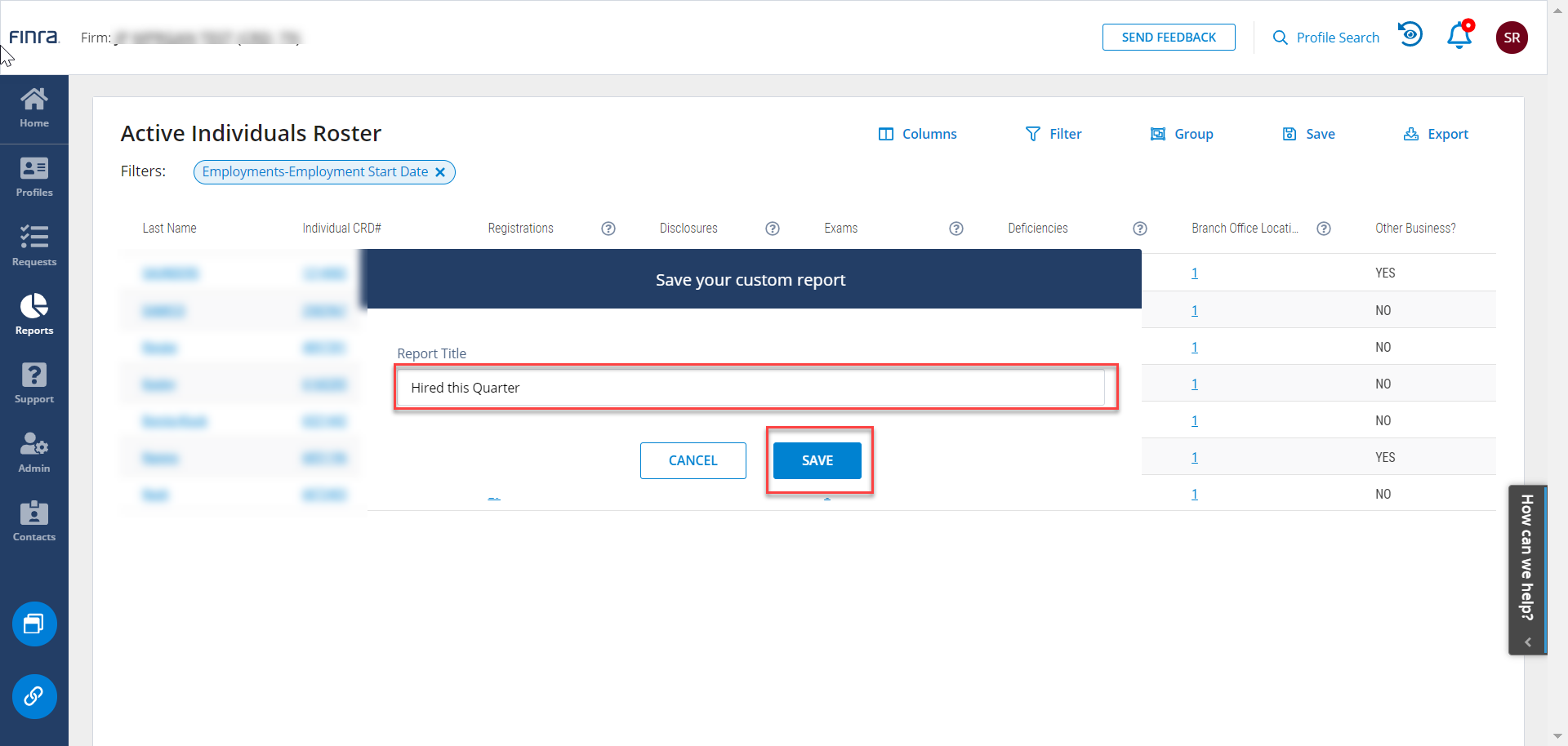
After you have applied the filter changes, use the Save tool in the top right to save changes as a Custom Report.
Within the save dialogue that appears, you can name your report. Once you enter a name, click on Save.
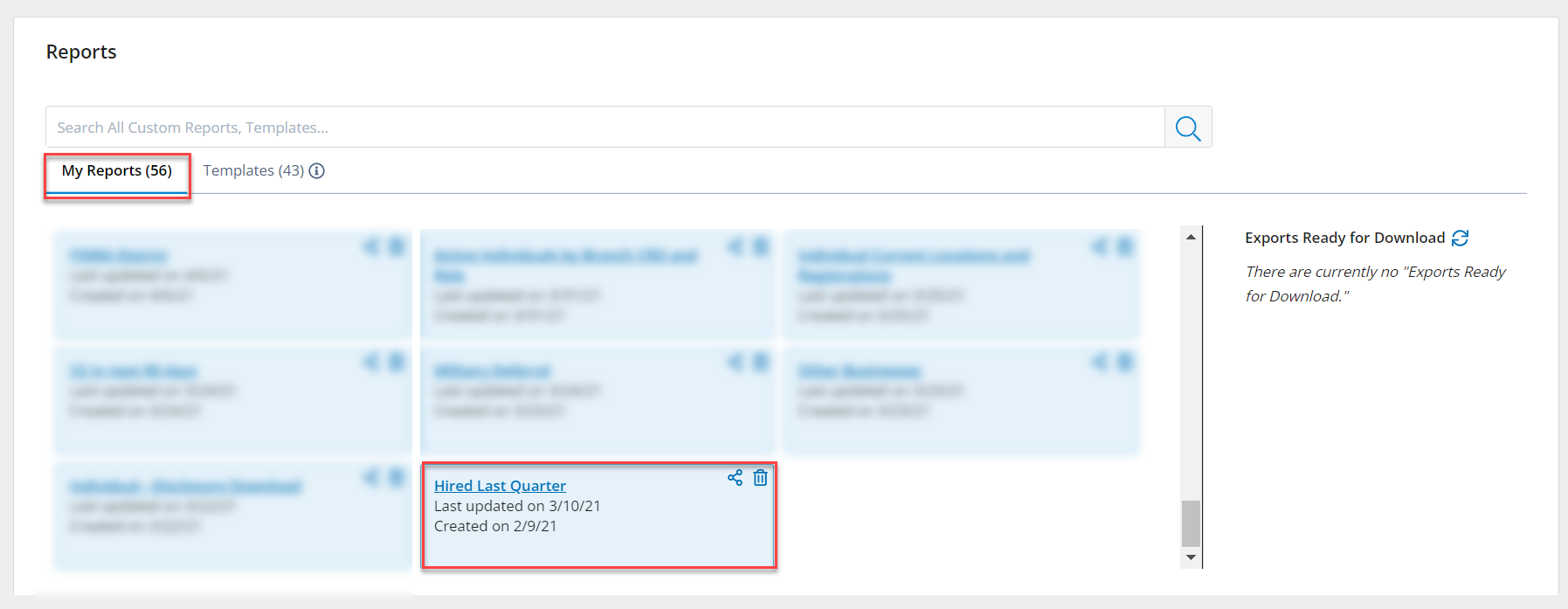
After you save your report, navigate to the Reports main page using the reports icon in the left margin. You will see your new report in the My Reports section.