FINRA Gateway User Entitlement Mapping
Using the Account Certification report this example walks users through how to export a report with a list of all accounts and the entitlements those accounts have access to, so the firm can certify that all accounts are valid, active and properly entitled to applications on the FINRA Entitlement Platform and the sensitive data that may be accessed.
The User logs into their Gateway Account via:
https://ews.finra.org/auth/logon?realm=ews&goto=https://gateway.finra.org/app?rcpRedirNum=1
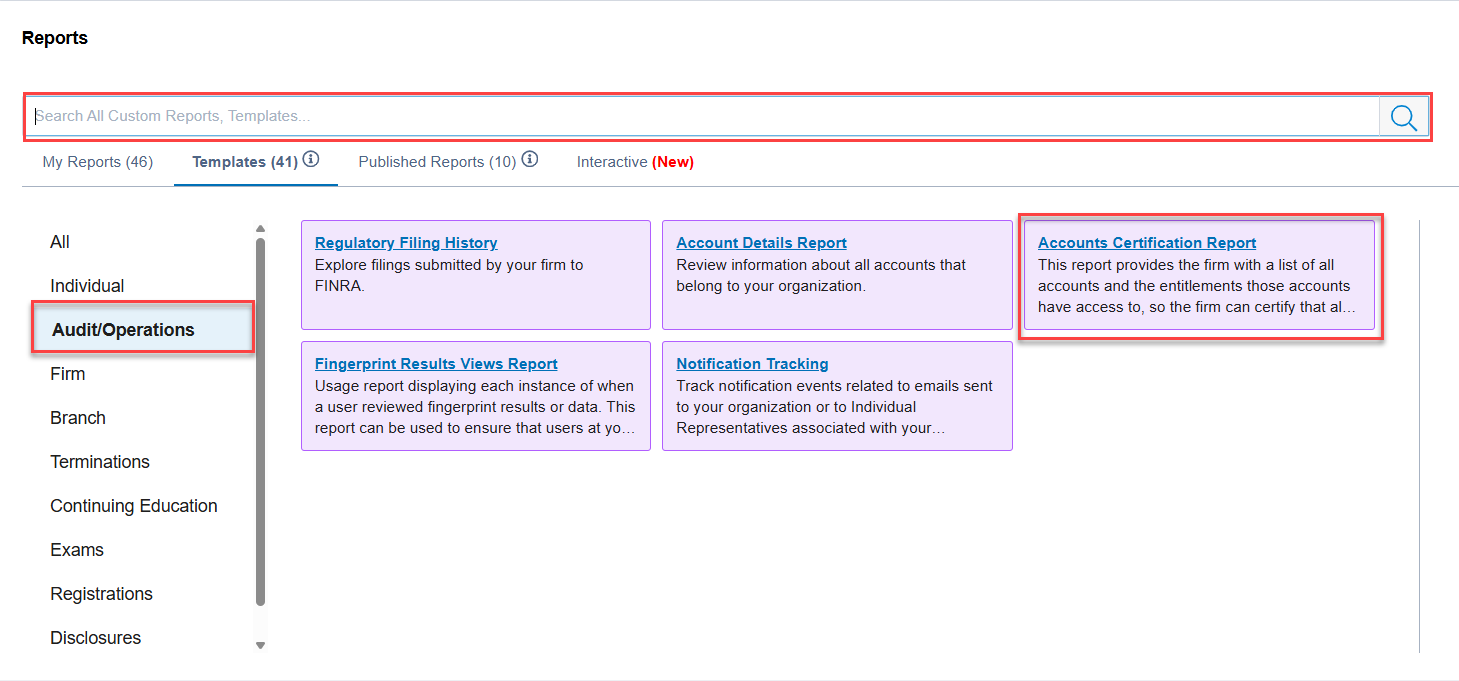
Navigating Gateway Reports the user can click on the Audit/Operations Category to navigate to the Account Certification Report or you can type in the name of the report.
Customized Account Certification Report
Once you have opened the Account Certification Report you can start customizing it and ensure it provides you with the information you need.
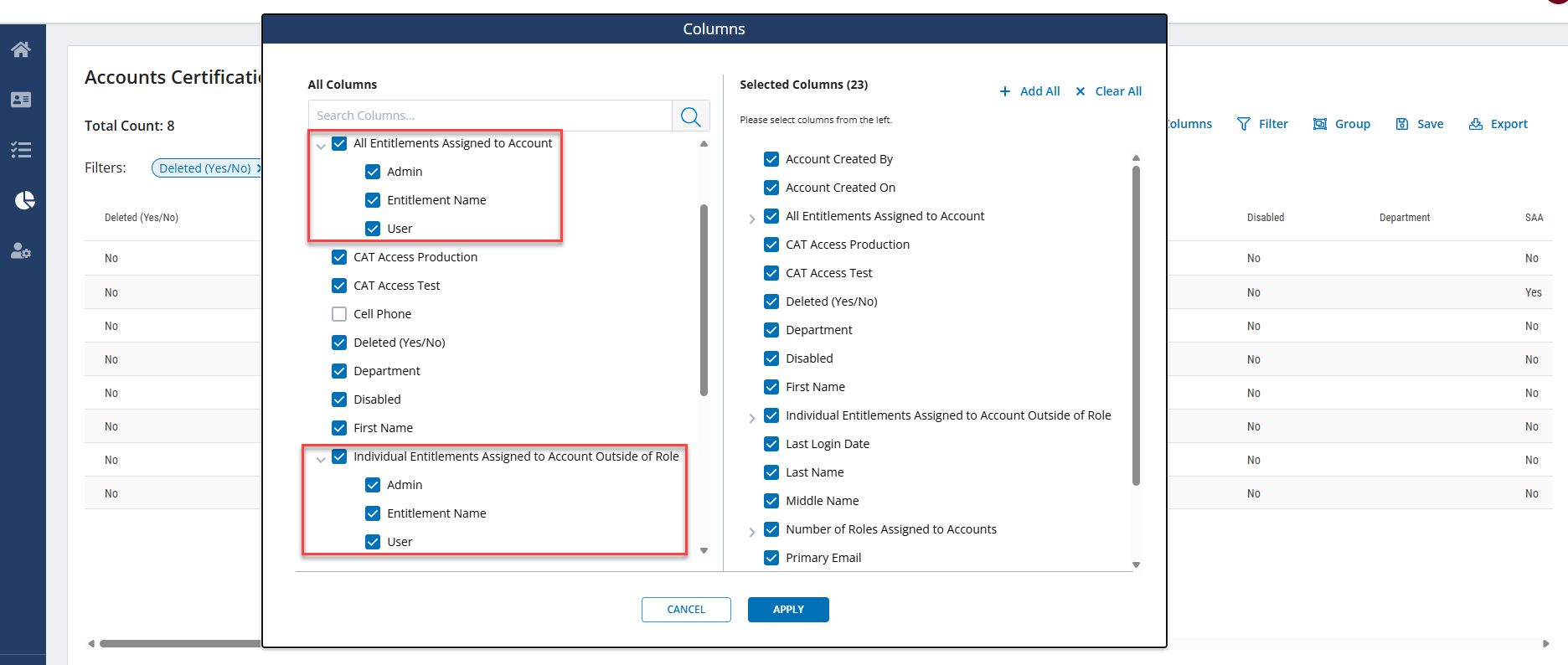
To review the columns on the report and to customize these fields, start by clicking on the Columns icon in the upper righthand side of the screen.
By default the “All Entitlements Assigned to Account” and “Individual Entitlements Assigned to Account Outside of Role” Columns are included in the report.
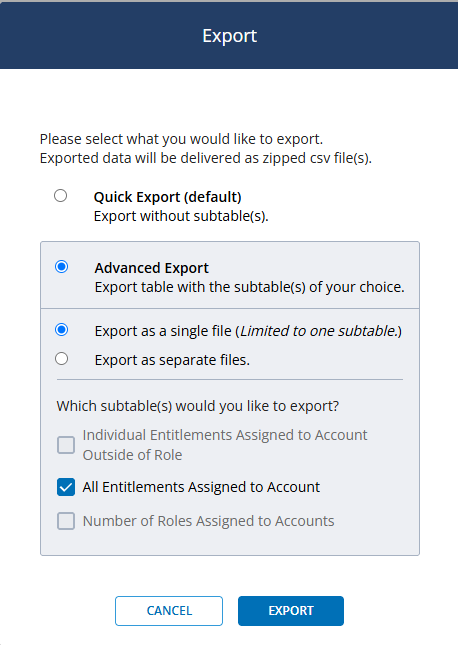
After verifying the contents of the report to verify it includes the data you need, click on the Export icon in the upper right-hand section of the report.
The Export dialog box will open, select Advanced Export, Export as a Single File, and All Entitlements assigned to Account sub-table by clicking on the radio buttons or checkboxes that apply to them.
Click on the Export button at the bottom of the dialog to export the file.
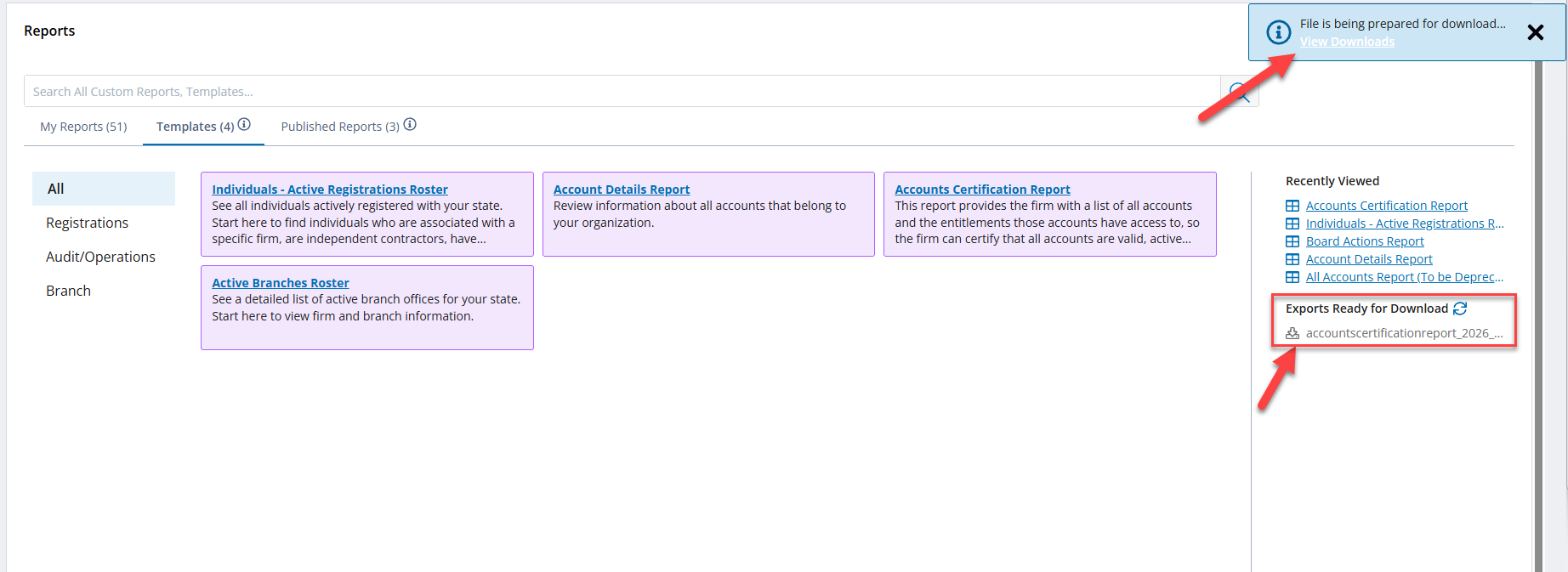
Once the export has been generated, it will show up on the Reports home screen as a blue hyperlink.
If the export file is not ready, it will appear grey. Clicking on the circular arrow icon will refresh the screen and turn the hyperlink blue when the export file is ready.
Alternatively, you can close reports and come back later to pick up the file. The file will be available 24 hours after it is generated.
Note
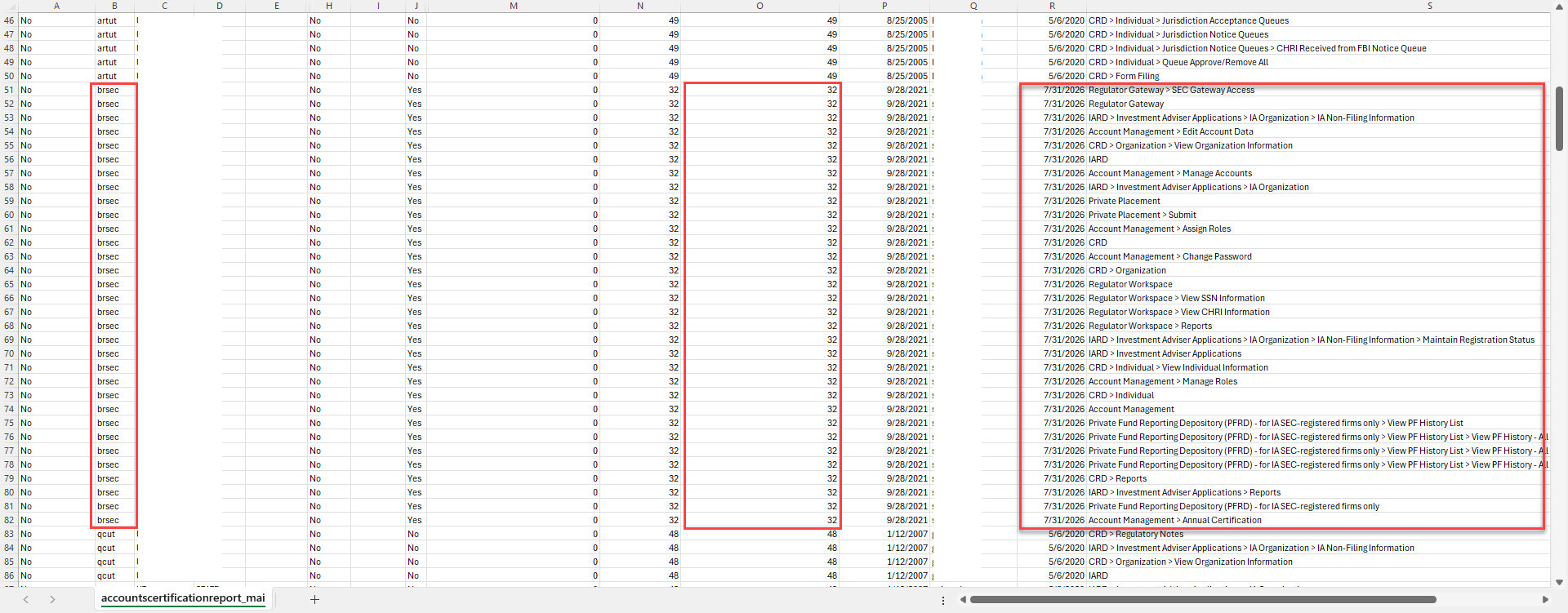
The Report you are exporting will list the individual for each unique entitlement. If the user has 32 entitlements assigned to their account, they will be listed 32 times on the report
See below:
User ‘brsec’ shows they have 32 Entitlements associated to their account with each entitlement name listed on the far right of the report.